


Members Area
Member guide
How to sign in for the first time, how to join, how to get access through the institution where you work, and what members find in the members area.
Which one is you?
The members area is part of the SOBRACAM website and works on computers and phones. To sign in, all you need is your registered email and a password. Pick the path that matches your situation.
- Path AI am already a member and have not signed in to the new website yetYou create your password from the welcome email SOBRACAM sent you.
- Path BI am not a member yetYou pay the annual fee by PIX, create your account on the website and send the receipt.
- Path CI work at a member institutionYou can get access through the institution's annual fee, without paying your own.
- Path DI already have a password on the new websiteJust sign in with your email and password.
You will need
- The email address registered with SOBRACAM and access to that inbox, because the password and confirmation links are sent there.
- An up-to-date browser (Chrome, Safari, Edge or Firefox), on a computer or a phone.
- A password with at least 8 characters. A phrase that is easy to remember and that you do not use on other websites works best.
Where to find the members area
On any page of the website, use the green Members area button at the top right. On a phone, it is inside the menu (the three-line icon).

Why do existing members need to create a new password?
Path A
First access for existing members
Your record has already been moved from the old website. All that is left is to create your password.
- Look for the email “SOBRACAM: the new website is here, create your password”, sent from [email protected]. Also check your Spam and Junk folders and the Promotions tab.
- Click the Create my password button. The link is valid for 14 days.
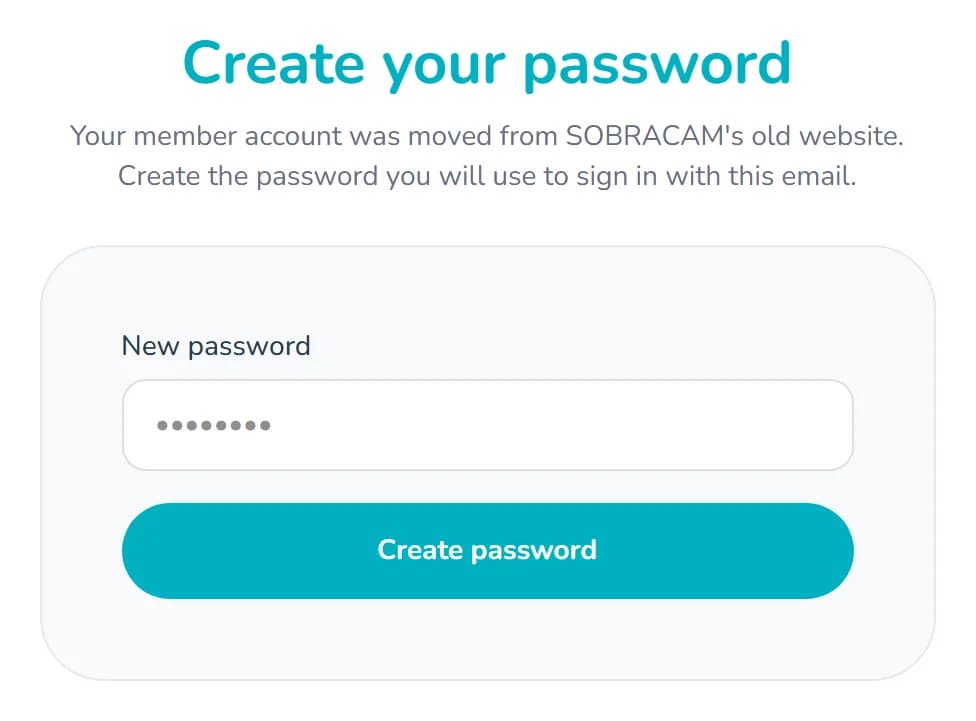
- On the Create your password screen, type your password (at least 8 characters) and click Create password.
- Done. Click Members area and sign in with your email and the password you created (path D).
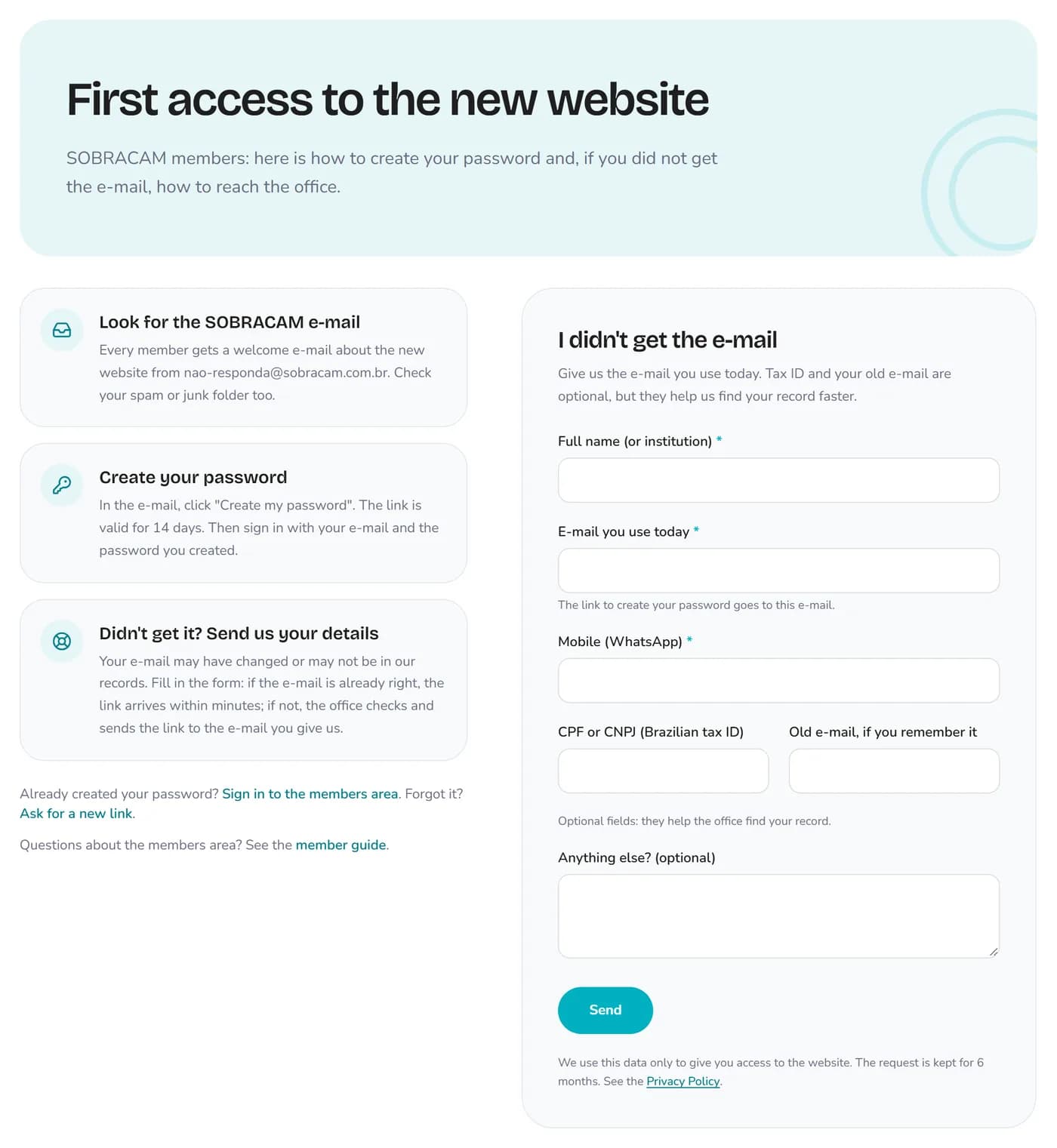
Didn't get the email?
Your email address may have changed or may be missing from your record. Open the First access to the new website page (the link is also on the sign-in screen) and fill in the form with the email you use today.
- If that email is already on file, the link to create your password arrives within a few minutes.
- If it is not, the secretariat checks your details and sends the link to the email you entered.
CPF or CNPJ and your old email are optional, but they help the secretariat find your record faster.
Already created your password and forgot it?
Path B
I want to join
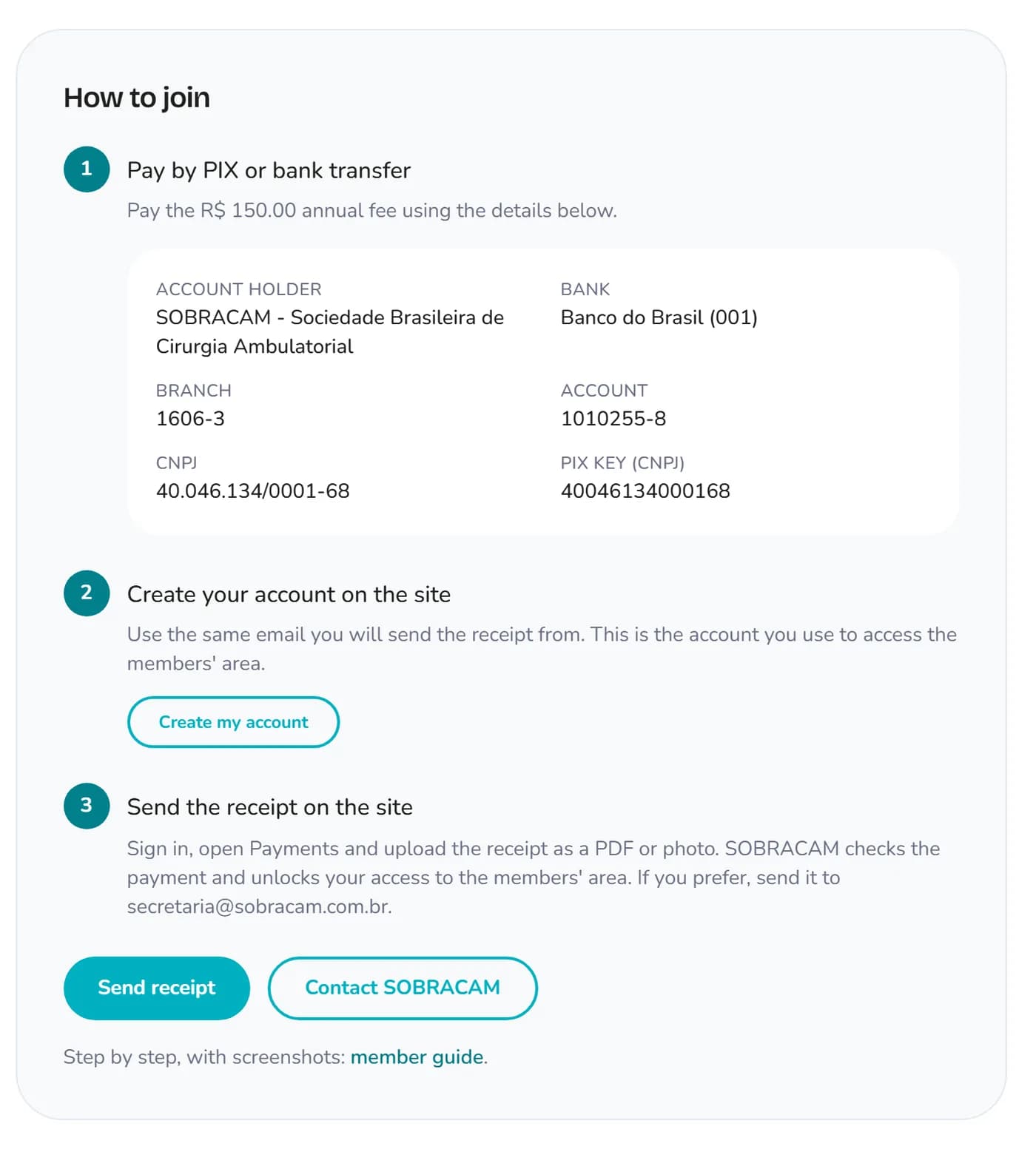
Membership is yearly: R$ 150.00 for individuals and R$ 1,000.00 for companies. Payment is by PIX or bank transfer, and the Join page shows the bank details and the three steps.
- Pay the annual fee to SOBRACAM by PIX or bank transfer. The PIX key is the CNPJ, 40.046.134/0001-68. Keep the receipt.
- Create your account on the website. Click Members area and then the Create account tab. Choose Individual or Company and fill in your name (or legal company name), email, password, tax ID (CPF or CNPJ), phone, field of activity, institution, city and state. Use the same email you will send the receipt from.
- Tick the box confirming you have read the Privacy Policy and the Terms of Use, and click Create account. You go straight into the members area, with your membership pending.
- Confirm your email with the link in the confirmation message. If it does not arrive, the dashboard shows a notice with a Resend button.
- Send the receipt through the website, as shown in Send your annual fee receipt, just below.
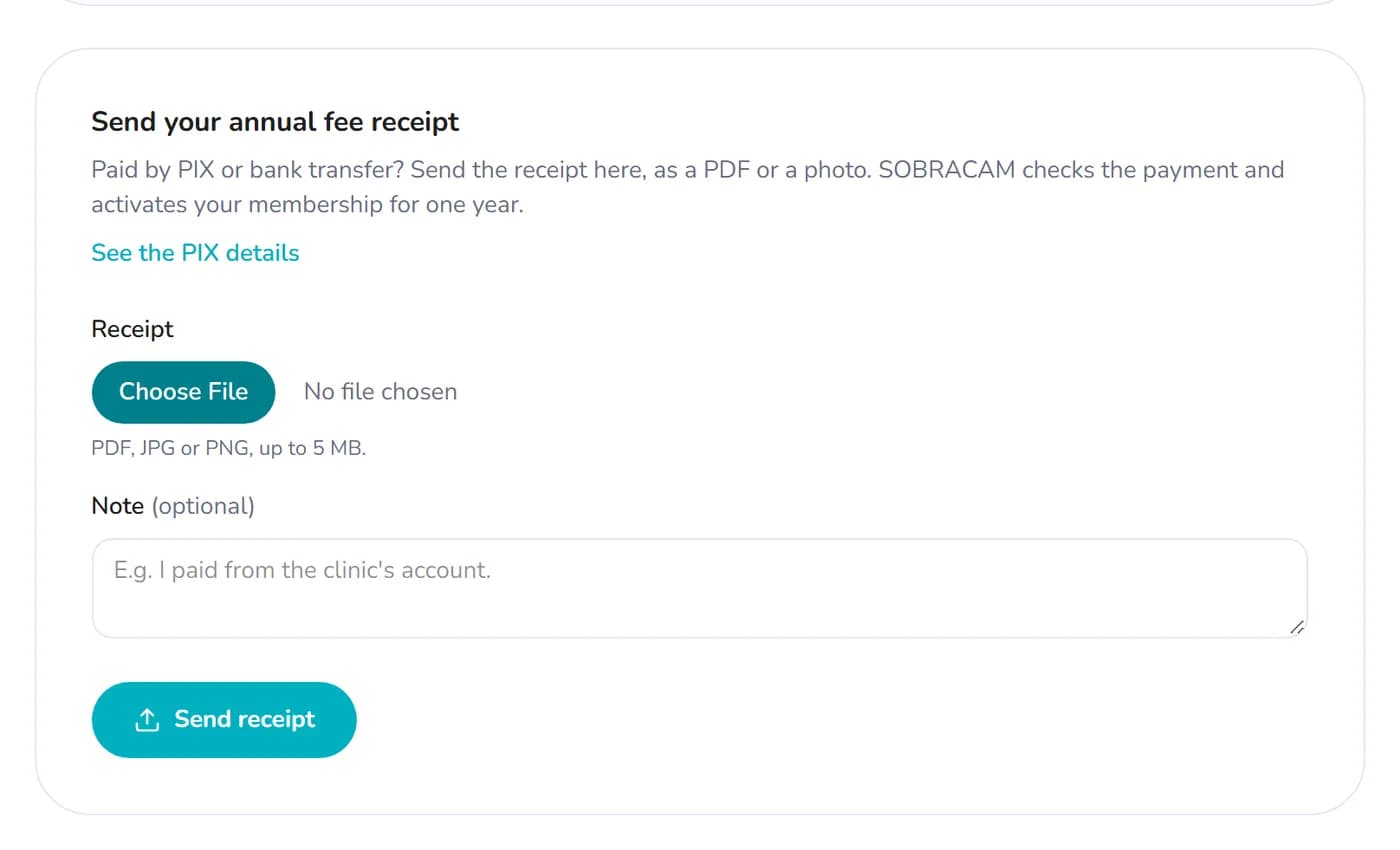
Send your annual fee receipt
The receipt is sent through the website itself, no email needed. This works both for joining and for renewing.
- Sign in, click your initials at the top right and open Payments.
- Under Send your annual fee receipt, choose the file (PDF, JPG or PNG, up to 5 MB). If you like, add a note, for example “paid from the clinic's account”. Click Send receipt.
- The page now shows Receipt under review. SOBRACAM checks the payment and you get an email with the answer.

- Once the receipt is approved, your membership is active for one year and the exclusive content is unlocked. If it is declined, the email explains why and you can send another one.
Renewal
Pay by PIX and send the new receipt the same way. If your membership is still current, the new year is added to your current expiry date, so you do not lose a single day.
Prefer email? Send the receipt to [email protected].
Path C
Access through the institution where you work
People who work at an institution that is a SOBRACAM member can get access to member content through the institution's annual fee, without paying their own. Access is approved by whoever manages the institution's account on the website.
If you work at the institution
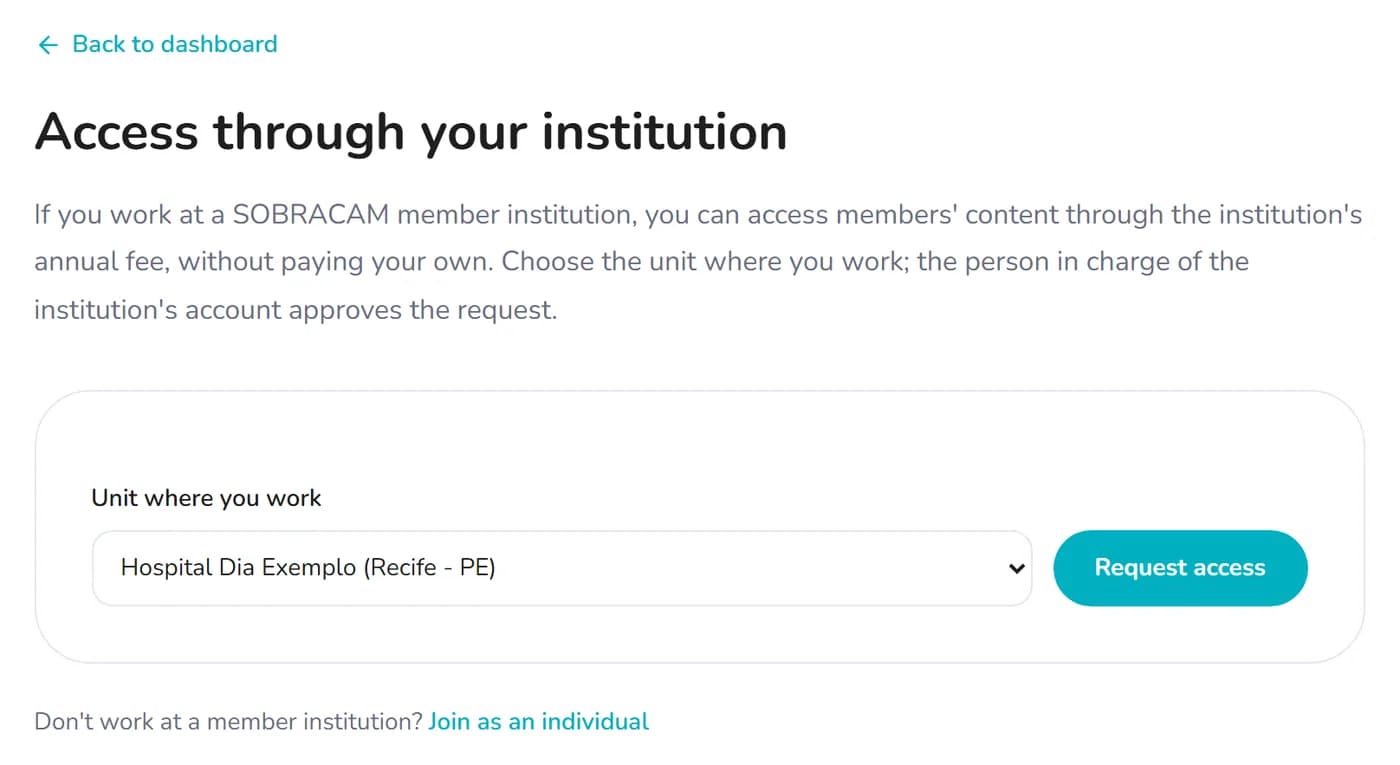
- Create an Individual account (path B, steps 2 to 4), without paying the annual fee.
- On the dashboard, open Access through your institution, choose the unit where you work and click Request access.
- Once the account manager approves, member content opens in your account.
If you manage the institution's account
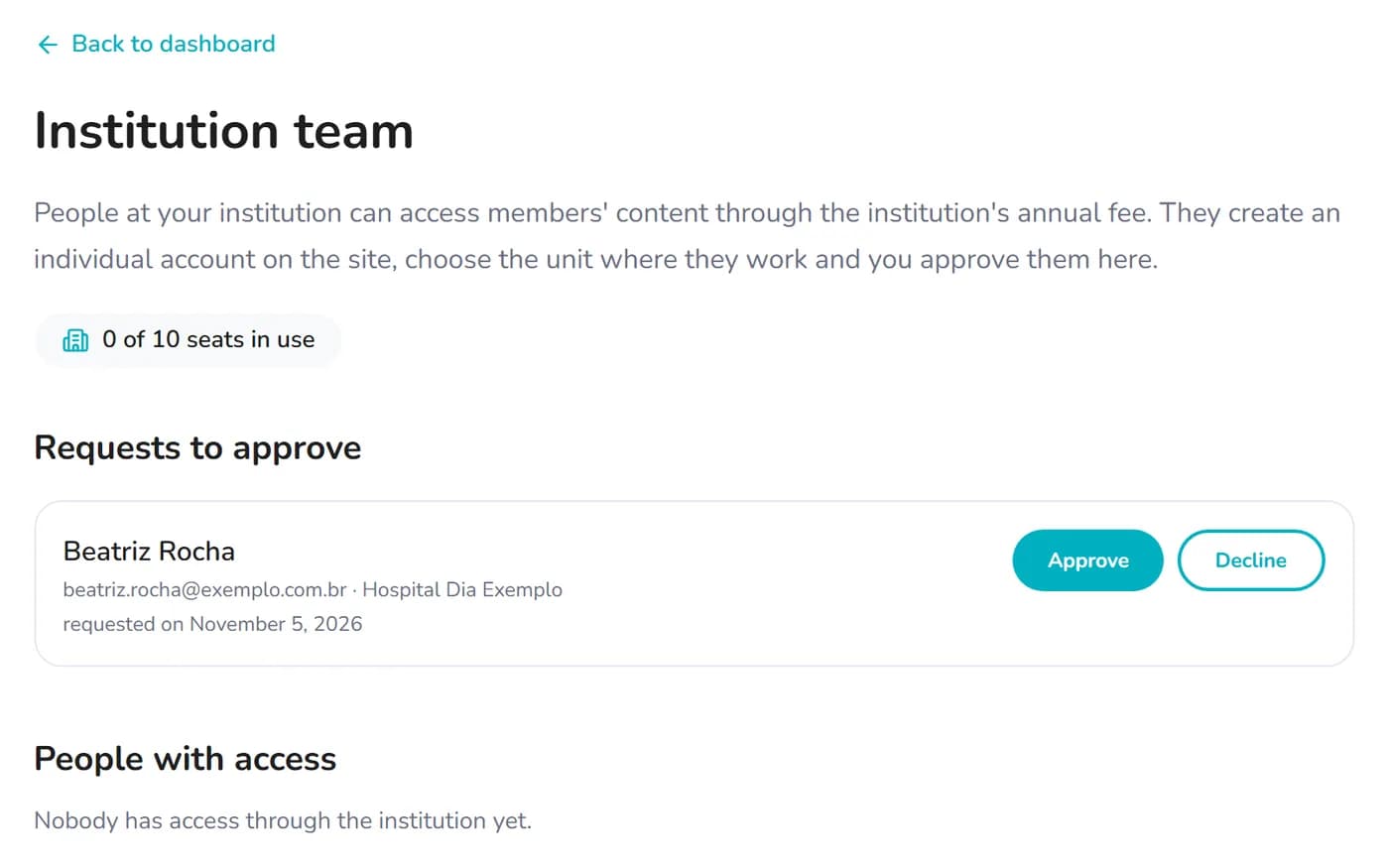
Sign in with the institution's account and open Institution team on the dashboard. Under Requests to approve, click Approve or Decline.
The page shows how many seats are in use and lets you remove access for people who have left the institution.
Path D
Signing in day to day
- Click Members area.
- Type your email and password and click Sign in.
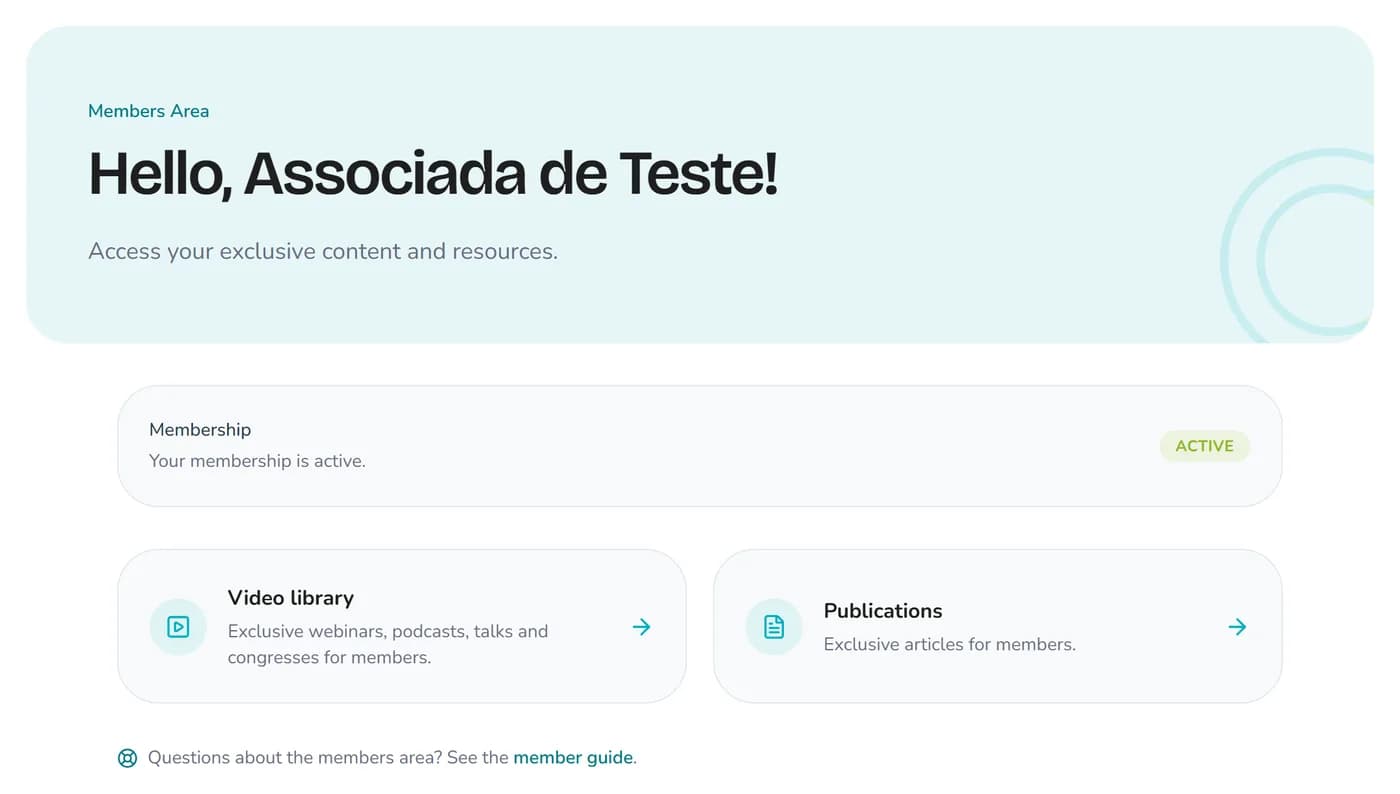
- You land on the dashboard, which shows your membership status and shortcuts to the exclusive content.
The website keeps you signed in on that device for a few days. On a shared computer, use Sign out in the account menu when you are done. If you mistype your password, your email stays filled in: just type the password again.
Membership pending or expired?
What members get
All of this is available while your membership, your own or your institution's, is current.
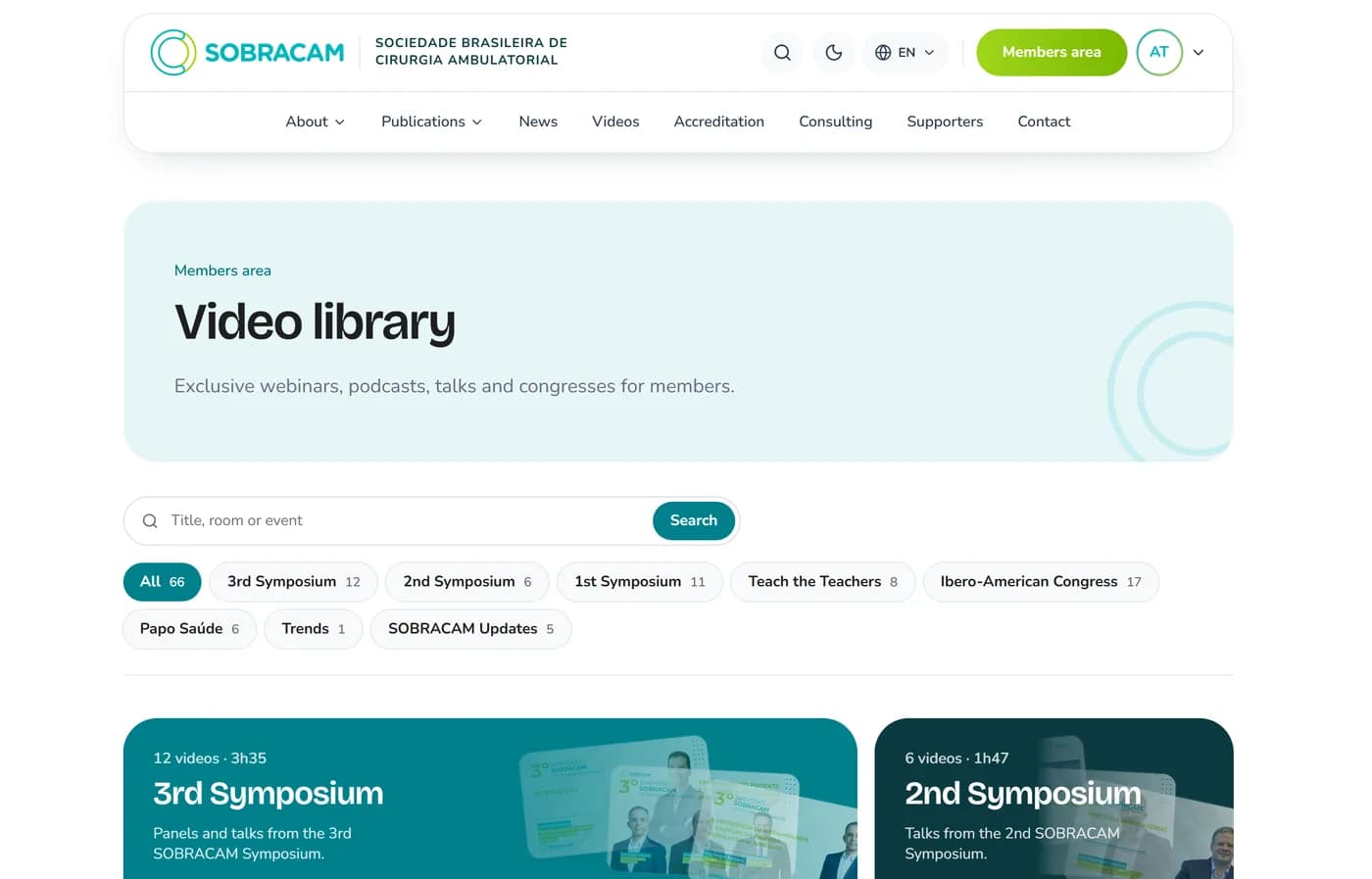
Video library
SOBRACAM symposia, congresses, webinars and podcasts, organized by event.
- Search by title, room or event, and filter by event at the top.
- Continue watching: the website remembers where you stopped and the video resumes from that point.
- Each video has its own page, with the previous and next videos from the same event.
Exclusive publications
SOBRACAM articles and materials for members only, readable right on the website.
Guidance Manuals
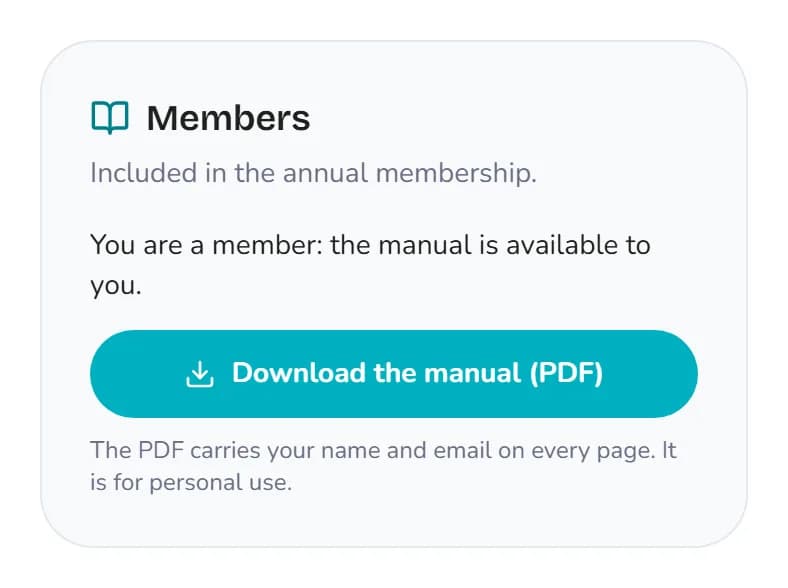
Under Guidance Manuals, in the Publications menu, each manual has its own page with a summary, chapters and videos. Members in good standing download the PDF with the Download the manual (PDF) button, at no cost beyond the annual fee.
The PDF carries your name and email on every page. It is for personal use.
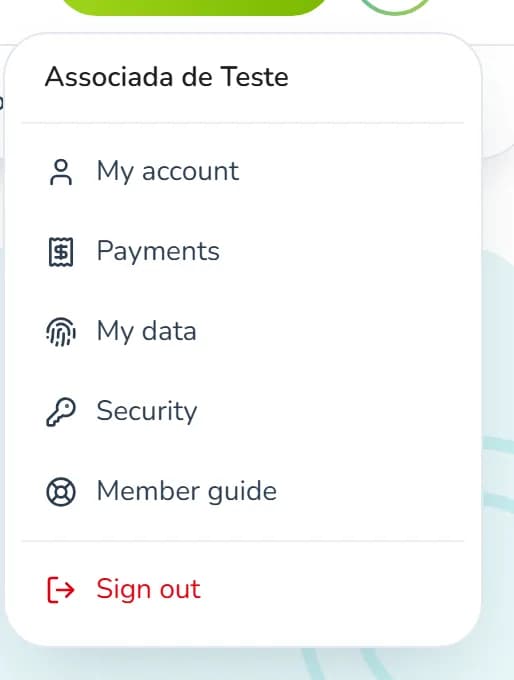
Account menu
Click your initials at the top right to open the account menu: My account, Payments, My data, Security, this guide and Sign out.
Profile, payments and privacy
My account
- Update your phone, institution, field of activity and city under Profile details.
- Change email asks for your current password, and the new address must be confirmed.
- Change password at any time.
- Under Communications, choose whether to receive news and event invitations by email.
Payments
Shows when your membership expires and how it was paid. This is where you send the annual fee receipt and follow the receipts already sent (under review, approved or declined).
My data
Your rights under the LGPD, Brazil's data protection law, in one place: download a copy of everything the website stores about you, or send SOBRACAM a request (correct your data, delete your account, find out who your data is shared with).
Security
Optional for members: turn on two-factor authentication with an authenticator app (Google Authenticator, Microsoft Authenticator and similar) and sign out of other devices with one click.
Frequently asked questions
- I did not get the welcome email.
- Check Spam, Junk and Promotions. If it is not there, use the First access to the new website page.
- The “Create my password” link no longer works.
- It is valid for 14 days and works only once. Request a new one on the First access to the new website page or with Forgot your password?.
- I see a message saying the link is invalid or expired.
- The “Forgot your password?” link is valid for 1 hour and works only once. Request another one and always use the most recent email.
- I see a message about too many attempts.
- It protects accounts from people trying to guess passwords. Wait about 15 minutes and try again, or use Forgot your password?.
- I do not know which email is registered, or I no longer have access to it.
- Fill in the First access to the new website page with the email you use today. The secretariat checks it and updates the email on your record after confirming who you are.
- My membership shows as “Pending” or “Expired”.
- Pay the annual fee by PIX and send the receipt in Payments. Your membership is activated once SOBRACAM checks the payment.
- I sent the receipt. When does my access open?
- As soon as SOBRACAM checks the payment. You get an email with the answer, and the dashboard shows your membership as current.
- My access through my institution was suspended.
- The institution's annual fee is pending. Access comes back on its own when it renews. If you changed institutions, use “Leave the institution” and request access through the new one.
- Can SOBRACAM ask for my password?
- No. SOBRACAM never asks for your password by email, phone or message. Official links always lead to sobracam.com.br.
The screenshots use made-up data, for illustration only.